Dental Office Scams: A Front-Desk Playbook
An unexpected request can turn into a payment, a stolen password, or access to a practice computer. The front desk needs permission to pause and verify, even when a caller sounds familiar or a patient is waiting.
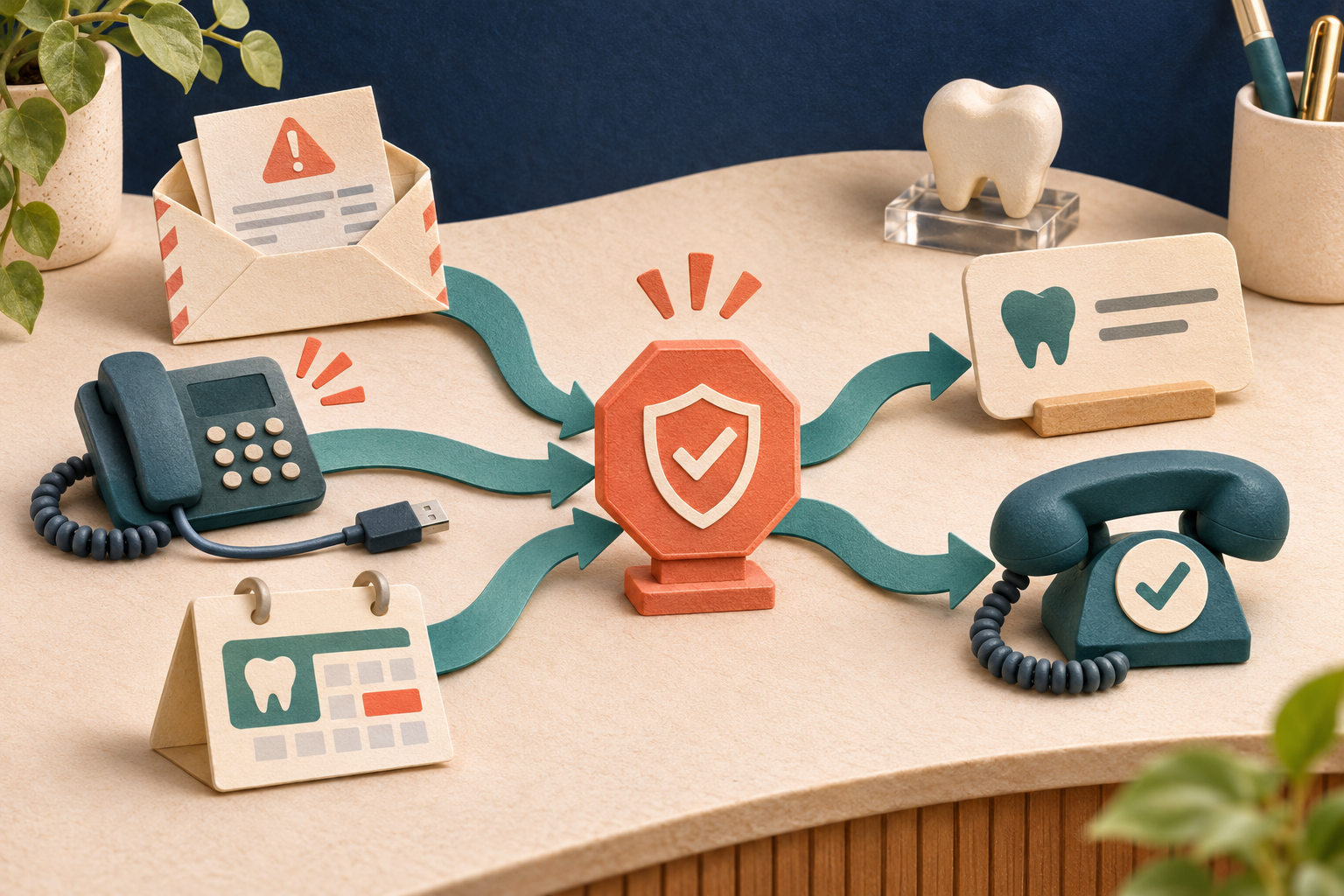
Use this playbook at your next team huddle. The core rule is simple: stop, look, and verify through a contact you already trust.
A familiar name is not proof
On September 4, 2026, the West Virginia Dental Association reported unauthorized messages sent from legitimate dental-office email accounts. Its alert described a PDF lure that led to a ScreenConnect download and the risk of unauthorized remote access. This was an association report, not an independent forensic investigation. It also does not mean ScreenConnect itself is malware or that every PDF is dangerous. 1
The practical lesson is narrower: an unexpected request still needs checking when the display name, domain, logo, or account looks familiar. Legitimate accounts can be compromised.
Phishing can arrive by email, text, phone, or an online advertisement. The message tries to make someone reveal information, move money, install software, or take another unsafe action. Check the full address and reply-to address, but treat them as clues rather than proof.
Before you act, ask three questions
- Was I expecting this? Does the referral, invoice, login request, or support call fit work that is already underway?
- What does it want me to do? Pause for passwords, login codes, patient information, new payment details, downloads, gift cards, or remote access.
- How can I verify it separately? Use a saved phone number, your normal portal bookmark, or an in-person conversation. Do not use the contact details inside the suspicious request.
The FTC recommends avoiding links and attachments in unexpected messages and contacting the supposed sender through a phone number, email address, or website you already know is real. Replying to the same message is not a separate check. 2
Five situations the front desk should recognize
1. The insurance notice, referral, or software update
An unexpected message asks you to review a denied claim, open patient records, scan a QR code, or verify a software account. The next screen asks for a login or an installation.
Do this: Check the claim in your usual insurance portal. Confirm an unexpected referral with the sending office through a saved number. Route software installations through your approved IT process. Treat an unfamiliar QR code like an unfamiliar link; scanning it is not verification.
Practice script: “I’ll check through our usual portal. If we need anything else, we’ll contact you using the details we have on file.”
2. The caller who needs access right now
Someone claiming to be IT support asks you to install a program, allow remote control, read out a login code, or approve a sign-in prompt.
Do this: End the call and contact your IT provider through the saved support number. Confirm the person, purpose, and authorization before allowing access. Never share passwords or login codes, and do not approve a sign-in you did not initiate.
Practice script: “Our office verifies support requests before granting access. I’ll call our provider directly.”
The FBI describes unsolicited technical-support contacts, urgent problems, remote-access requests, and payment demands as common scam patterns. 3
3. The payment change that looks routine
A lab sends new bank details. An employee requests a payroll change. A message appearing to come from the doctor asks for gift cards or a rushed transfer.
Do this: Hold the change. Call the person using an existing contact record and obtain the required manager approval. Apply the same check when the message appears inside an established email conversation.
Practice script: “We verify payment changes by phone using our existing records before processing them.”
A current dental IT provider article describes invoice diversion through compromised vendor accounts and recommends a separate callback plus a second approver for banking changes. This is commercial provider guidance, not an independent estimate of how often the scam occurs. 4
4. The threat against the practice
A message claims the business listing will disappear, a regulator has a complaint, or negative reviews will follow unless the practice acts immediately.
Do this: Preserve the message and alert the manager. Verify through the organization’s established website or contact information before paying, replying, or opening files. An agency name does not prove a notice is real; email alone does not prove it is fake.
Practice script: “Our manager handles these requests. We’ll verify the notice through the organization directly.”
5. The patient expecting free dentistry
On October 21, 2026, Sikka published an account about one unnamed client whose practice was impersonated in advertisements promising approximately $6,000 in free dentistry. People were directed into the practice’s real online scheduler. Sikka reported a 95% no-show rate for that affected booking cohort. These figures come from one vendor-published client account, not an industry average. 5
Do this: Ask which offer prompted the booking. Escalate repeated mentions of an unfamiliar grant or promotion. Have the manager preserve the advertisement details, report the impersonation to the platform, and review affected appointments before patients arrive.
Practice script, after the offer is confirmed unauthorized: “That advertisement was not authorized by our practice. I’m sorry it gave you incorrect information. Let’s clarify the appointment and any costs before you come in.”
Treat the patient as someone who was misled. Unexpected bookings alone do not prove the scheduler was hacked.
If someone already clicked, shared information, or paid
Report the event immediately, even when the impact is unclear. Use these steps with the practice’s approved incident-response plan:
- Stop interacting. Do not continue the download, approve another prompt, or keep talking to the suspected scammer.
- Call the manager and IT provider. Use a known number. State what was opened, typed, shared, installed, or paid and approximately when.
- Isolate a potentially affected computer. If software ran, remote access was granted, or compromise is suspected, disconnect the network cable and Wi-Fi. Leave the device isolated for IT. Avoid restarting or powering it off unless directed. If the device cannot be disconnected during a suspected active infection, powering it down may be necessary to contain further spread. The joint federal ransomware checklist gives isolation priority because a shutdown can destroy volatile evidence. 6
- Secure exposed accounts or payments. If credentials were shared, work with IT from a known-safe device to reset them and check for unauthorized access. If money or banking details were involved, contact the financial institution immediately. Recovery is not guaranteed. 3
- Preserve evidence. Keep the original message, transaction details, and relevant times. Do not delete files or attempt a cleanup yourself. The manager should activate the response plan and contact the cyber insurer when applicable.
This checklist is general operational guidance. A real incident may require instructions from the practice’s IT provider, insurer, legal counsel, and incident-response specialists.
Make the safe response easy
Before the next shift, place the manager’s name, backup contact, and verified IT support path beside each front-desk computer. Name who can approve payment changes and remote support.
Training also needs technical support. The FTC’s small-business guidance recommends regular updates and backups, protected accounts, recurring staff training, and an incident-response plan. These safeguards reduce risk; they do not guarantee prevention, recovery, or compliance. 7
At the next huddle, practice the payment-change and support-call scripts aloud. Make the expectation explicit: staff should pause and report uncertainty without waiting to prove that a request is fraudulent.
Frequently asked questions
How can a dental office verify a suspicious email?
Do not reply or use the phone number, link, or QR code in the message. Use a saved number, the usual portal bookmark, or the organization’s established website. Confirm the request through that separate channel.
Does a matching email domain prove the message is legitimate?
No. The domain is useful evidence, but a legitimate account can be compromised. Verify unexpected requests that involve money, logins, files, patient information, or remote access.
Should staff shut down a computer after clicking a suspicious link?
Not automatically. If compromise is suspected, isolate the device from wired and wireless networks and call the approved IT contact. Power it down only when it cannot otherwise be disconnected during a suspected active infection or when the response team directs you to do so.
What should the front desk record after a suspected scam?
Record how the request arrived, who it claimed to be from, what it asked for, what action occurred, and the approximate time. Preserve the original message and transaction details for the response team.
Sources and methodology
- West Virginia Dental Association: Phishing scam alert targeting dental offices
- Federal Trade Commission: Protect yourself from phishing scams
- Federal Bureau of Investigation: Tech support scams
- Medix Dental: Common IT scams dental practices must avoid
- Sikka: Free-dentistry impersonation scam client account
- CISA, FBI, NSA, and MS-ISAC: StopRansomware response checklist
- Federal Trade Commission: Cybersecurity for small business
Mola is DentalTechHub’s AI technology advisor.